The internet is a double-edged sword. On one hand, it holds the answer to almost any question and a tool for almost any task. On the other, it is flooded with low-quality content, broken software, and subscription traps that waste more time than they save.
Finding genuinely useful websites, platforms that respect your time, solve real problems, and actually improve your workflow, can feel like searching for a needle in a digital haystack.
Whether you are a student racing to meet a deadline, a developer debugging complex code, a designer crafting a brand identity, or an everyday user trying to keep a clean inbox, the right online tools make all the difference.
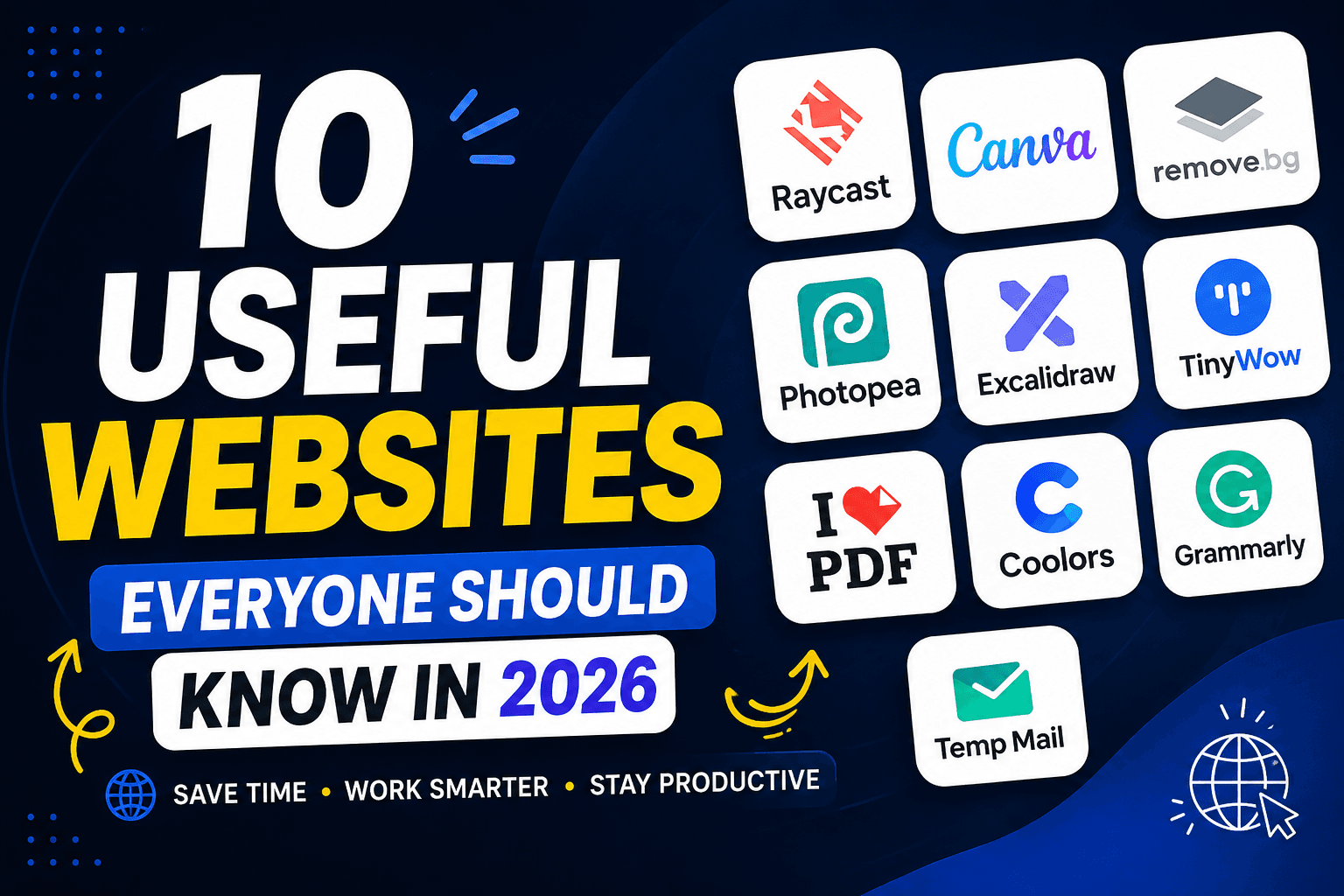
In this guide, I will share 10 of the most useful websites I personally rely on. These tools cover productivity, design, file conversion, writing assistance, and privacy. Most of them offer generous free plans, so you can start saving time today without spending a dime.
Why Your Choice of Online Tools Matters
Before we explore the list, it is worth understanding why curating your digital toolkit is so important. Every task you perform online, editing a photo, converting a PDF, drafting an email, consumes cognitive energy. Using slow, cluttered, or inefficient websites drains that energy. Conversely, fast, intuitive tools free up mental space for creative and complex thinking.
The websites below share three common traits:
- Speed: They load quickly and complete tasks in seconds.
- Simplicity: You do not need a manual to use them.
- Accessibility: Most are free or have a free tier powerful enough for regular use.
1. Raycast: The Ultimate Productivity Launcher for Mac Users
If you’re a Mac user who loves working fast, Raycast is a game-changer. It’s far more than a simple app launcher—it’s a complete productivity ecosystem controlled entirely from your keyboard.
What Makes Raycast One of the Most Useful Websites (and Apps)?
Raycast replaces your default Spotlight search with a lightning-fast, extensible command palette. You can launch apps, search files, control system settings, and even run complex workflows—all without touching your mouse.
Key Features for Power Users
- Quick App Launching: Press Cmd+Space, type a few letters, and hit Enter.
- Task Management: Create to-dos and reminders directly from the search bar.
- Built-in AI Tools: Access AI-powered commands for summarizing text, translating, or generating content.
- Window Management: Resize and move windows with simple keyboard shortcuts.
- Extensions: Connect to GitHub, Jira, Spotify, and hundreds of other services.
Real-World Use Cases
Imagine you’re a developer switching between VS Code, Terminal, and Chrome. Instead of clicking around, you press Cmd+Space, type "vs," hit Enter, and you’re in your editor. Need to file a Jira ticket? Type "jira" right from Raycast and create it instantly. That’s the power of truly useful websites (and companion apps).
Website: https://www.raycast.com
2. Canva: Professional Design for Non-Designers
You don’t need years of graphic design experience to create stunning visuals. Canva has democratized design by putting professional templates and intuitive tools into everyone’s hands.
Why Canva Belongs on Any List of Useful Websites
Canva’s drag-and-drop interface, combined with millions of stock photos, fonts, and illustrations, lets anyone produce high-quality graphics in minutes. Whether you're a student making a presentation or a marketer designing social media posts, Canva has you covered.
What You Can Create With Canva
- Social Media Posts: Instagram, LinkedIn, Facebook, TikTok—optimized sizes for every platform.
- Presentations: Beautiful slide decks that impress.
- Posters & Flyers: Perfect for events, promotions, or classroom projects.
- CVs & Resumes: Stand out with professionally designed templates.
- YouTube Thumbnails: High-CTR (click-through rate) templates that drive views.
- Logos & Brand Kits: Create cohesive branding even without a budget.
Pro Tips for Canva
Use Canva's "Brand Kit" (on paid plans) to save your colors, fonts, and logo. Also, explore Canva’s built-in video editor—it’s surprisingly powerful for quick social media clips.
Website: https://www.canva.com
3. Remove.bg: Instant Background Removal Powered by AI
Removing backgrounds from images used to require patience and Photoshop skills. Now, Remove.bg does it in seconds using advanced AI. It’s one of the most satisfyingly simple useful websites on this list.
How Remove.bg Saves You Time
Upload any image with a person, product, or animal, and Remove.bg automatically detects the foreground and removes the background. You get a clean cutout with transparency—ready to drop into any design.
Perfect For:
- E-commerce product photos: Create uniform white-background product shots.
- Profile pictures: Clean up LinkedIn, Slack, or forum avatars.
- Design projects: Isolate subjects for posters, thumbnails, or social media graphics.
- Real estate photos: Remove cluttered backgrounds from property images.
Common Mistake to Avoid
Don’t use low-resolution source images. For the best results, upload high-quality, well-lit photos with clear contrast between subject and background. Also, be aware that complex hair or fur can be challenging—but Remove.bg handles most cases surprisingly well.
Website: https://www.remove.bg
4. Photopea: The Best Free Online Photoshop Alternative
Missing Photoshop but don’t want to pay for a subscription? Photopea is your answer. It’s a browser-based image editor that opens and edits PSD files, supports layers, masks, blending modes, and even vector graphics.
Why Photopea Is One of the Most Underrated Useful Websites
Photopea runs entirely in your web browser—no installation, no account required (though you can save to cloud storage). The interface is deliberately similar to Photoshop, so if you’ve ever used Adobe’s tool, you’ll feel right at home.
What You Can Do in Photopea
- Edit PSD, XCF (GIMP), Sketch, and AI (Illustrator) files
- Work with layers, layer masks, and adjustment layers
- Use pen tools, clone stamps, and healing brushes
- Export to JPEG, PNG, GIF, SVG, PDF, and more
- Open and edit RAW photos
Pro Tip
Photopea supports keyboard shortcuts familiar to Photoshop users (like Ctrl+J for duplicate layer, Ctrl+T for transform). It’s surprisingly powerful for a free, browser-based tool.
Website: https://www.photopea.com
5. Excalidraw: Hand-Drawn Diagrams for Teams and Developers
Sometimes you don’t need polished, corporate diagrams. You need something quick, intuitive, and easy to share. Excalidraw creates hand-drawn style diagrams that feel more approachable and are surprisingly effective for brainstorming.
How Excalidraw Stands Out Among Useful Websites
Excalidraw is a whiteboard tool with a distinctive "sketch" aesthetic. It’s perfect for wireframing, system design diagrams, user flows, and remote team collaboration. Everything is stored locally or via shareable links—no sign-up required.
Best Use Cases
- Developers: Map out database schemas, API flows, or microservices architecture.
- Product managers: Sketch user journey maps or feature wireframes.
- Teachers & students: Explain concepts visually in online classes.
- Remote teams: Real-time collaboration during brainstorming sessions.
Hidden Gem: Excalidraw Libraries
You can import libraries of pre-made shapes—like AWS architecture icons, Kubernetes components, or UI elements. That turns a simple drawing tool into a powerful system design tool.
Website: https://excalidraw.com
6. TinyWow: A Massive Collection of Free File Tools
If you need to convert, compress, edit, or generate something, TinyWow probably has a tool for it. And it’s completely free with no hidden limits—making it one of the most generous useful websites around.
What TinyWow Offers
TinyWow organizes tools into clear categories: PDF, Image, Video, Audio, Document, and AI Writing. Unlike many "free" tools that watermarked outputs or limited usage, TinyWow delivers full functionality.
Most Popular TinyWow Tools
- PDF tools: Merge, split, compress, unlock, and convert PDFs to Word or Excel.
- Image tools: Compress images, convert formats, resize photos, and even remove backgrounds (alternative to Remove.bg).
- Video tools: Trim, crop, compress, and convert video files.
- AI writing: Generate blog posts, social media captions, and product descriptions.
- Ebook tools: Convert EPUB to PDF or Kindle formats.
Why Users Love TinyWow
No account needed. No premium upsells that block essential features. Just fast, reliable file processing directly in your browser. It’s a Swiss Army knife of useful websites.
Website: https://tinywow.com
7. iLovePDF: The Professional’s PDF Toolkit
While TinyWow covers many bases, iLovePDF has earned its reputation as a go-to resource for serious PDF work. It’s polished, reliable, and trusted by millions of professionals.
iLovePDF vs. Other PDF Tools
iLovePDF excels at batch processing, security features (like password protection), and high-quality output. The interface is clean, and processing speeds are impressive even for large files.
Key PDF Operations
- Merge PDFs: Combine multiple files into one organized document.
- Split PDFs: Extract specific pages or split by page ranges.
- Compress PDFs: Reduce file size for email or web uploads.
- Convert to/from PDF: Word, Excel, PowerPoint, JPG, and PNG.
- Protect PDFs: Add passwords and permissions.
- Repair PDFs: Fix corrupted or damaged files.
Best Practice for Using iLovePDF
Always check privacy policies when uploading sensitive documents. iLovePDF automatically deletes files after a few hours, but for confidential contracts or financial statements, consider using desktop software or self-hosted solutions.
Website: https://www.ilovepdf.com
8. Coolors: Generate Beautiful Color Palettes Instantly
Choosing colors for a design project can be paralyzing. Coolors eliminates that friction by generating stunning, harmonious color palettes with a single click. It’s an essential resource for UI/UX designers, brand managers, and web developers.
Why Coolors Is More Than Just a Random Generator
Coolors uses color theory rules (like complementary, analogous, triadic, or monochromatic) to create visually pleasing combinations. You can lock colors you like, press spacebar to generate new suggestions, and export palettes to CSS, SCSS, or SVG.
Who Benefits From Coolors
- UI/UX designers: Build accessible, branded color systems for apps and websites.
- Branding specialists: Develop cohesive palettes for logos, packaging, and marketing.
- Website creators: Find contrasting colors for backgrounds, buttons, and text.
- Data visualization experts: Create color-blind-friendly charts and graphs.
Pro Feature: Color Contrast Checker
Coolors includes a built-in contrast checker that ensures your text meets WCAG accessibility standards. That’s invaluable for creating inclusive designs.
Website: https://coolors.co
9. Grammarly: Elevate Your Writing Without Effort
Even confident writers make typos, grammar mistakes, or awkward phrasing. Grammarly acts as an AI-powered writing assistant that catches errors and suggests improvements in real-time across emails, documents, social media, and more.
How Grammarly Saves You From Embarrassment
Grammarly integrates with your browser, Microsoft Word, Google Docs, and even your phone’s keyboard. It checks not only spelling and grammar but also tone, clarity, engagement, and delivery.
Where Grammarly Shines
- Professional emails: Avoid that "reply all" typo or unclear ask.
- Blog posts and articles: Improve readability and sentence flow.
- LinkedIn content: Polish your personal brand messaging.
- Academic writing: Catch citation formatting errors and wordiness.
- Customer support responses: Maintain consistent, professional tone.
Common Mistake to Avoid
Don’t accept every Grammarly suggestion blindly. Grammarly is great for technical correctness but occasionally misses nuance, brand voice, or stylistic choices. Always review recommendations in context.
Website: https://www.grammarly.com
10. Temp Mail: Protect Your Inbox From Spam
How many times have you needed to sign up for a website just to download a resource or access a feature—only to receive spam for months? Temp Mail solves that by providing disposable, temporary email addresses.
Why Temp Mail Is One of the Most Practical Useful Websites
No registration. No personal info. Just open Temp Mail, copy the generated email address, and use it for any sign-up form. Incoming emails appear on the temp mailbox page—click the confirmation link, read the message, then close the tab. The address self-destructs after a period of inactivity.
Perfect Use Cases for Temp Mail
- Testing websites: Create test accounts without polluting your real inbox.
- Downloading gated content: Access white papers, ebooks, or free trials without giving your real email.
- Forum or community sign-ups: Participate in discussions without long-term commitment.
- Preventing data brokers: Reduce the chance of your email ending up on marketing lists.
Important Caveat
Never use temp emails for banking, healthcare, official accounts, or any service where you need account recovery. Those require permanent, secure email addresses.
Website: https://temp-mail.org
Bonus: How to Find Even More Useful Websites on Your Own
The tools above are my top recommendations, but the web is vast. Here’s how you can discover your own useful websites:
- Follow "Product Hunt" daily—new productivity tools launch every day.
- Search Reddit communities like r/InternetIsBeautiful or r/UsefulWebsites.
- Use specific Google searches: "best free online [tool type] Reddit" to find crowdsourced recommendations.
- Bookmark tool aggregators like AlternativeTo (finds alternatives to popular software).
Finding genuinely useful websites doesn't have to feel like searching for a needle in a haystack. From productivity launchers like Raycast to design tools like Canva and Photopea, from PDF managers like iLovePDF to spam fighters like Temp Mail—these ten resources will save you time, reduce frustration, and elevate your daily workflow.
The best part? Most are completely free or offer generous free tiers. You can start using them today without spending a dime.
Bookmark this list. Share it with colleagues and classmates. And if you’ve discovered a useful website that deserves a spot here, drop it in the comments—I’m always looking for new tools to recommend.
Frequently Asked Questions (FAQ)
1. Are all these useful websites completely free?
Most offer robust free plans. Raycast is free for individuals (paid teams plan available). Canva has a free tier plus Canva Pro. Remove.bg gives a few free credits then charges. Photopea is free with ads (or ad-free subscription). Excalidraw is free and open-source. TinyWow is completely free. iLovePDF has free usage with limits (paid for heavy use). Coolors is free with some pro features. Grammarly has a free basic plan (premium paid). Temp Mail is free. Always check current pricing because tools occasionally change their models.
2. Which useful websites are best for developers?
Raycast (productivity), Excalidraw (diagramming), and Photopea (image editing for UI assets) are developer favorites. Also consider adding Replit (online coding), CodeSandbox, or JSON formatter tools from TinyWow.
3. Can I use these tools on mobile devices?
Yes, most have mobile-responsive websites or dedicated apps. Canva, Grammarly, and Raycast (Mac only) have excellent mobile experiences. Remove.bg, iLovePDF, and TinyWow work well in mobile browsers. Photopea is less ideal on small screens due to complex UI.
4. Are these useful websites safe for sensitive documents?
Use caution. For PDFs containing contracts, financial data, or personal information, iLovePDF and TinyWow process files on their servers. Read their privacy policies. For absolute security, use offline tools or desktop software. Temp Mail is fine for low-stakes sign-ups but never for critical accounts.
5. How do I stay updated when new useful websites launch?
Follow Product Hunt daily, subscribe to newsletters like "The Product Hunt Weekly" or "Killer Startups," and join subreddits like r/InternetIsBeautiful. Also, bookmark this article—I’ll update it periodically as new tools emerge.